

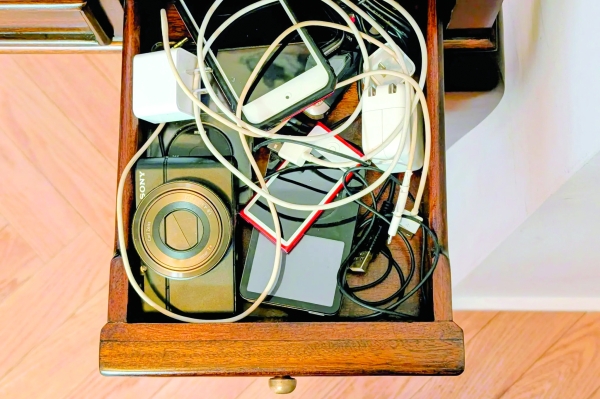
Reviving Your Old Digital Music Players and Cameras
Digital music players and cameras may have fallen out of favor with the rise of smartphones, but many of us still have those nostalgic devices hidden away in drawers. If you’ve kept that old iPod because your computer crashed and took your cherished music collection with it, you might be overlooking a treasure trove of personal tracks. Similarly, an old pocket camera can still serve a purpose, especially if you pass it along to a budding photographer. Here’s a step-by-step guide on how to revive these devices and reclaim your memories.
Making Connections
To get started, you’ll need to establish a connection between your device and computer. Given the technology from the early 2000s, this often means finding a USB cable. Some older iPods utilized FireWire connections, which can complicate matters, so be sure to research your specific model. Most manufacturers, including Apple, Microsoft, and Sony, still offer online user guides for older products. Alternatively, websites like ManualsOnline and ManualsLib host thousands of digitized manuals for your convenience.
If you’ve lost the original cables, don’t despair! Retailers like Best Buy and Amazon carry a wide variety of replacement cables. Just make sure you identify the correct type, as USB cables have evolved over time, featuring different connectors such as Apple’s proprietary Dock and Lightning connectors.
Newer computers often feature exclusively USB-C ports, meaning you might need a hub or adapter for your connection. Beware of cheap ‘FireWire to USB’ converters, as they rarely work due to the differing technologies.
Operation iPod
The iPod, introduced 25 years ago by Apple and retired in 2022, was once the leading music player. However, Apple imposed strict limitations to prevent piracy, allowing music only to transfer from the computer to the iPod, not the other way around. This means that if your iPod is the sole repository for your much-loved, ripped-from-CD tracks, you’ll need a workaround to recover them.
Apple is phasing out the original iTunes software in favor of the Music app for newer Mac and Windows systems. When connecting your iPod to a computer using this software or Finder, be cautious about letting the software automatically sync. Doing so could erase your precious files. Instead, choose to “manually manage” the iPod.
Recovery procedures will differ based on your computer’s operating system, iPod model, and the software you’re using. Various community forums and Apple’s support pages offer advice tailored to different scenarios.
If you find the process too technical, file-management software like iExplorer, iMazing, Sharepod, or TouchCopy makes things simpler by presenting the iPod’s contents on-screen. At prices starting around $30, these programs enable you to transfer not just music files, but also playlists, videos, and other content stored on the iPod. Be prepared: files that are password-protected may require authentication before you can access them.
Other Gear
MP3 players from companies other than Apple often provide a more straightforward transfer process. Many of these devices function like external hard drives, allowing for seamless file copying via Windows File Explorer or Mac’s Finder. For instance, Sony’s digital Walkman models utilize Windows Media Player for file management, and specific guidelines can usually be found online or in their manuals.
If you’re looking to recover photos from an old digital camera, make sure it still works by checking the playback mode. Connect it to your computer with the appropriate cable. If the default program doesn’t launch for photo importation, browse through Windows File Explorer or the Mac Finder to access the memory card’s contents when it appears as an external drive.
If you can’t locate the necessary cable, many laptops come equipped with built-in Secure Digital (SD) reader slots that can be used for memory cards. For those without this feature, inexpensive adapters are readily available.
Recycle or Reboot?
After successfully rescuing your files and backing them up to a cloud server or external drive, consider what to do with your old device. You can erase its data and either take it to an electronics recycler or sell it.
If you’ve been actively using the device but run into issues, such as a loose headphone jack, consider seeking professional repair services. Alternatively, you can tackle repairs yourself by consulting tutorials on sites like iFixit, which offers step-by-step guides and manuals on many gadgets, including iPod batteries. Their artificial intelligence-powered FixBot can assist with troubleshooting.
Handing down your old device to a younger family member not only breathes new life into the technology but also allows for creativity and a nostalgic glimpse into a world before smartphones took over.